![Hagleitner_Logo.png]](https://knowledge.hagleitner.com/hs-fs/hubfs/Hagleitner/Hagleitner%20-%20Logo/Hagleitner_Logo.png?height=40&name=Hagleitner_Logo.png)
Why is a building structure needed in HsM?
In order to scan and register HsM devices you will need a building structure made of a building, floor and room. You can also use the building elements "building area" and "floor area" for a more detailed building structure.
The creation of a building structure can be done via:
Creating a building structure with the Hagleitner360 app
- Open a customer number.
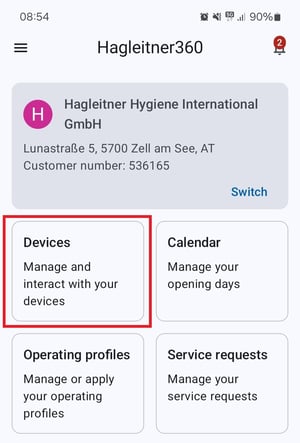
- Go to "Devices".
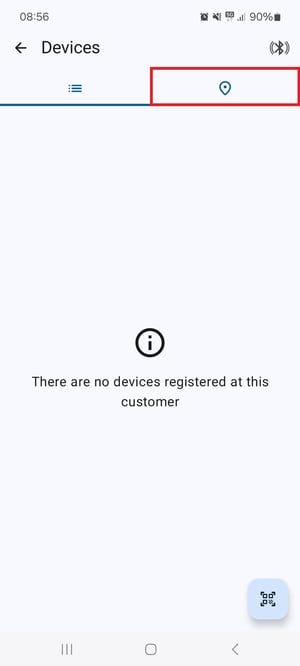
- In the device list tap on the location icon.
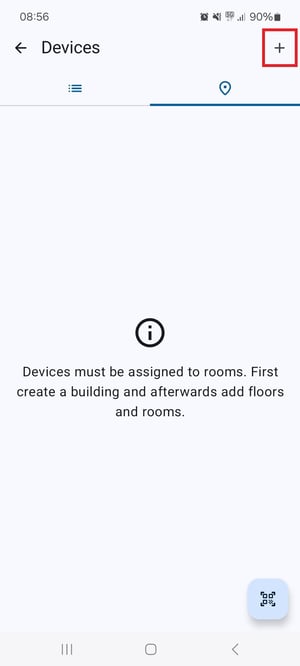
- Tap on the plus symbol at the top right of the location tab.
- Choose a name for the building and tap on "Save".
- Tap on the building to reveal the floor.
- Tap on the three dots menu at the floor and select "Add room".
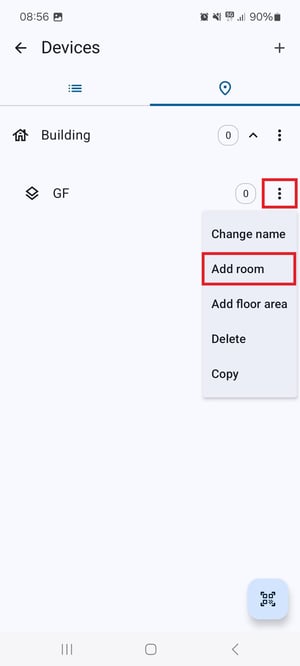
- Choose a name for the room and tap on "Save".
Now you can register HsM devices to this room.
Tip: Tapping on the three dotted menu at any building element allows you to edit, copy or delete the element.
Creating a building structure with the HsM web portal
- Open the HsM web portal.
- Select a customer number.
- Go to "Devices" > "Devices by location".
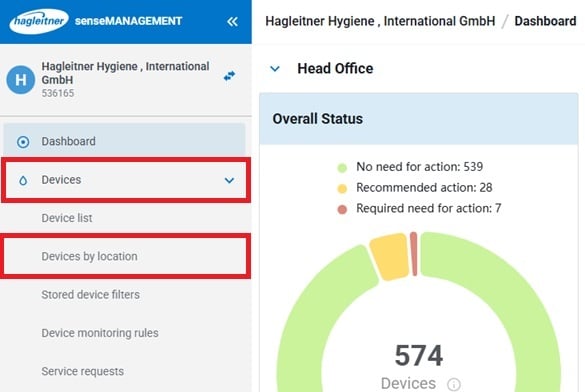
- Click on "Add building".

- Choose a name for the building and click on "Save".
- Click on the three dots menu at the building and select "Add floor".
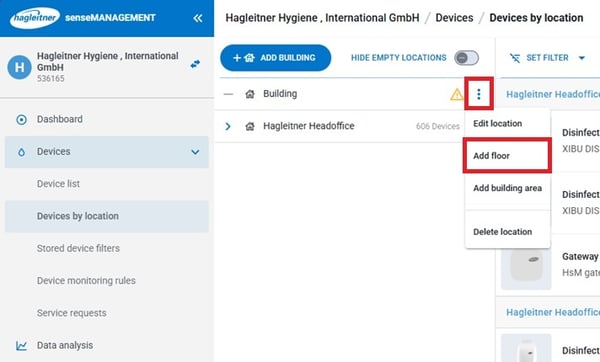
- Choose a name for the floor and click on "Save".
- Click on the three dots menu at the floor and select "Add room".
- Choose a name for the room and click on "Save".
Now you can scan and register HsM devices via the Hagleitner360 app.
Tip: Clicking on the three dotted menu at any building element allows you to edit or delete the element.
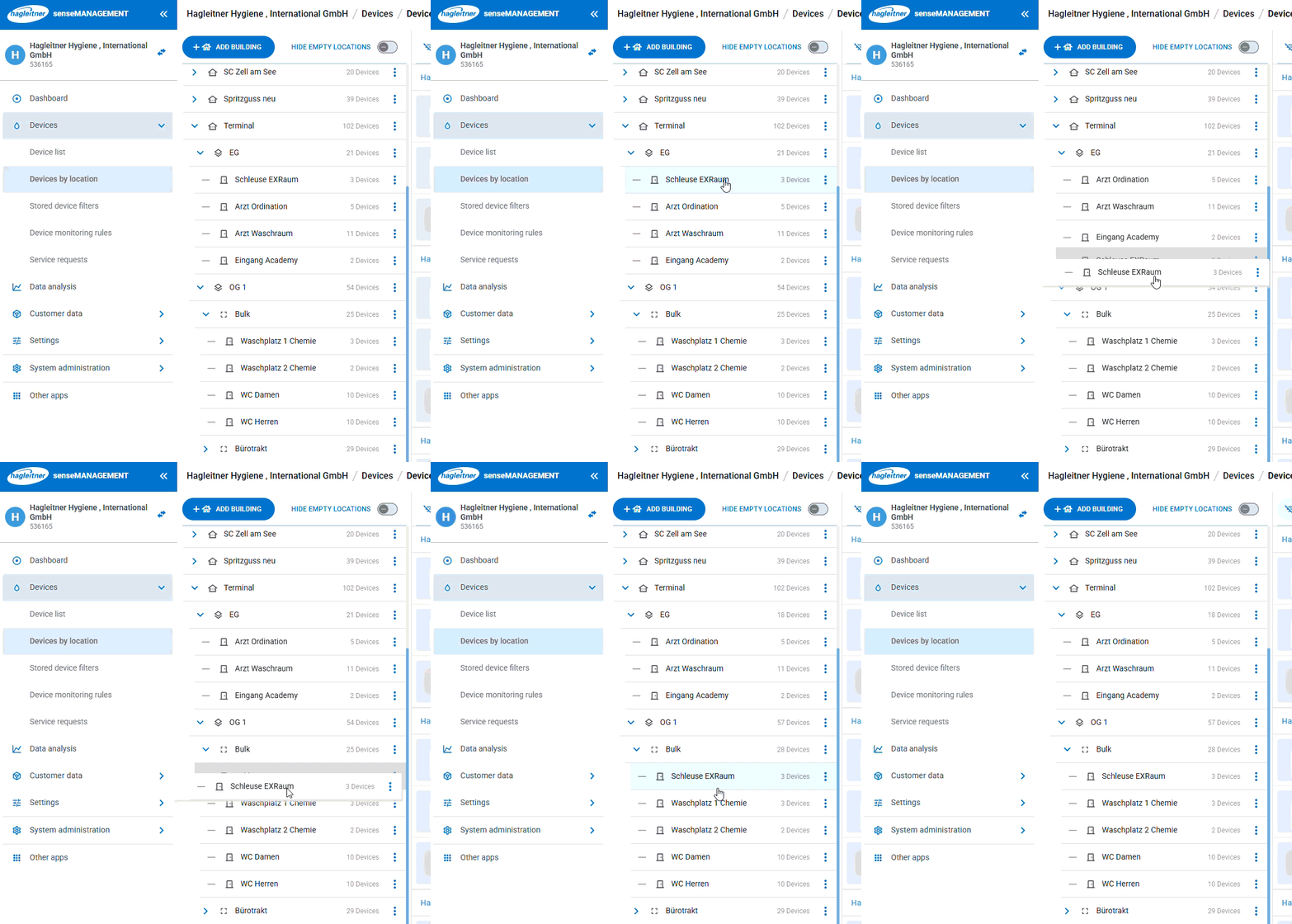
Tip: Is a room or another element at the wrong place? You can put building elements to a different place via drag and drop.