![Hagleitner_Logo.png]](https://knowledge.hagleitner.com/hs-fs/hubfs/Hagleitner/Hagleitner%20-%20Logo/Hagleitner_Logo.png?height=40&name=Hagleitner_Logo.png)
Navigation
Moving devices via the Hagleitner360 app
- Open the Hagleitner360 app.
- Select the customer number, where the device is.
- Tap on "Devices" at the Dashboard.
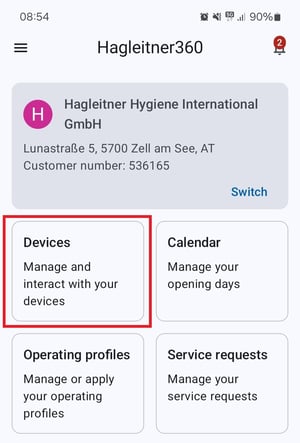
- Select your device via the device list.
- You can also tap on the QR code button on the bottom right and scan the device's QR code to land directly on the detail page.
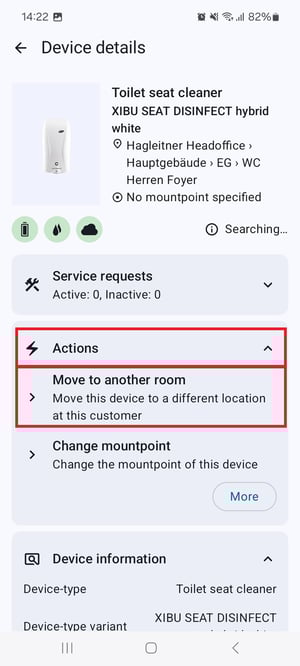
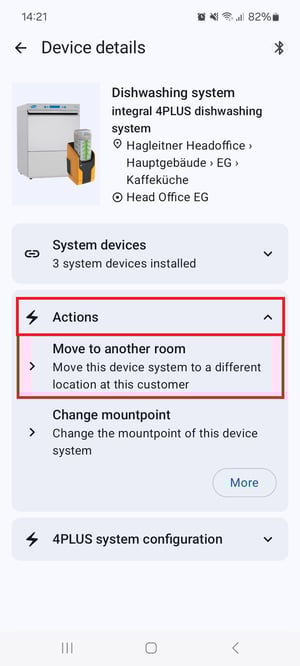
- At the detail page scroll down to "Actions" and tap on "Move to another room".
- Tap on "Location".
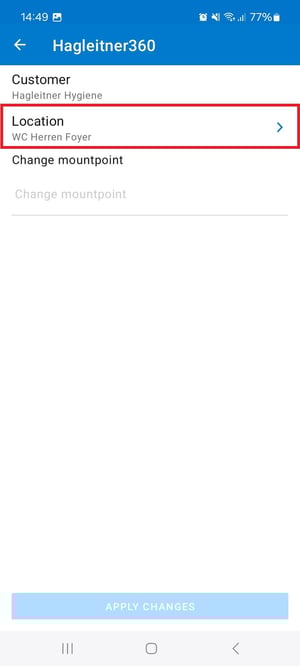
- Select a room.
- You can also enter a mountpoint (optional).
- Tap on "Apply changes".
Tip: To move a device to another customer, select "Actions" > "More" > "Move to another customer" and select the other customer via "Customer".
Moving devices via the HsM web portal
- Open the
HsM web portal
.
- Select the customer number, where the device is.
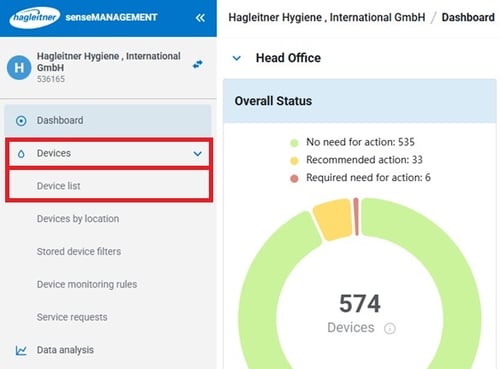
- Click on "Devices" > "Device list".
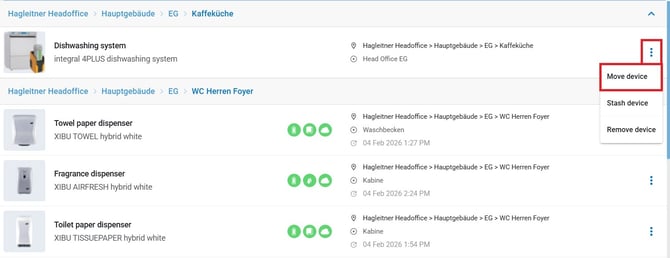
- Click on the three-dot menu at the device and then select "Move device".
- Select a room.
- You can also enter a mountpoint (optional).
- Click on "Move".
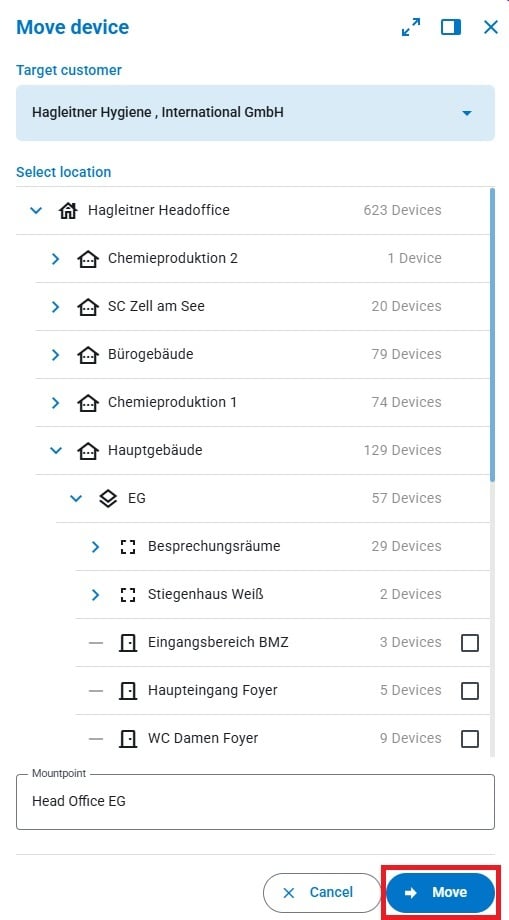
Tip: To move a device to another customer, click on the blue box below "Target customer" and select the other customer.