![Hagleitner_Logo.png]](https://knowledge.hagleitner.com/hs-fs/hubfs/Hagleitner/Hagleitner%20-%20Logo/Hagleitner_Logo.png?height=40&name=Hagleitner_Logo.png)
Information about operating profiles
You can create and save operating profiles for every HsM device where you can change settings with the Hagleitner360 app (except integral4PURE/MIX). Operating profiles can be applied to other HsM devices of the same type within the same customer number. This is very helpful for devices with many setting options.
Operating profiles can be created and applied via:
Notice: Operating profiles are saved within the customer number. They are not usable across different customer numbers.
Creating an operating profile via the dashboard
- Open the Hagleitner360 app and open a customer number.
- Go to "Operating profiles".
- Tap on the plus icon
 at the device type you want to use.
 - Name the operating profile and tap on "Next".
- Adjust the operating profile.
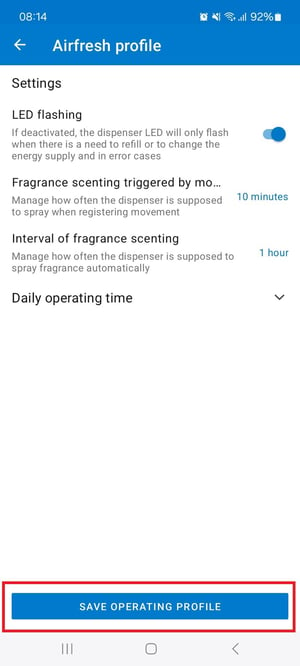
- Tap on "Save operating profile".
Applying an operating profile via the dashboard
- Open the Hagleitner360 app and open a customer number.
- Go to "Operating profiles".
- Tap on the arrow icon
 at a device type.
 - Select an operating profile.
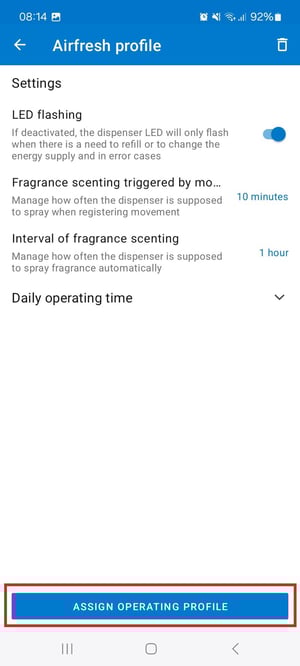
- Tap on "Assign operating profile".
- Mark all the devices you want the operating profile to get applied to*.
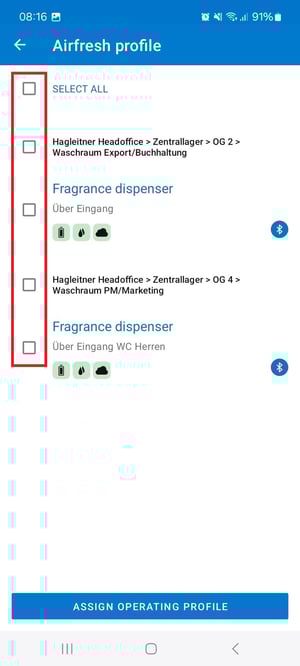
- Tap on "Assign operating profile".
- After the operating profile has been applied to the selected devices, tap on "Close".
*Notice: The list shows devices that are:
- Of the same device type as the operating profile
- In Bluetooth range
- Registered at the selected customer number
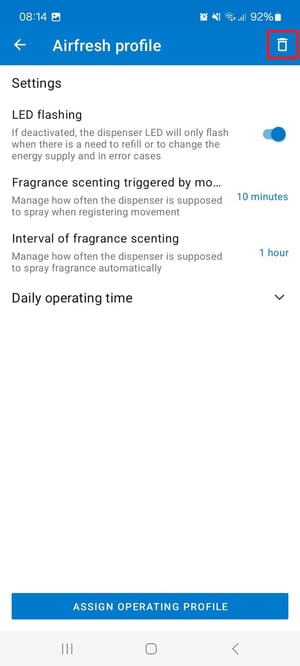
Tip: By tapping the rubbish bin icon, you can delete an operating profile.
Creating an operating profile via actions at the device
Operating profiles can be created and applied directly at the device in the device detail page.
- Open the Hagleitner360 app and open a customer number.
- Go to "Devices".
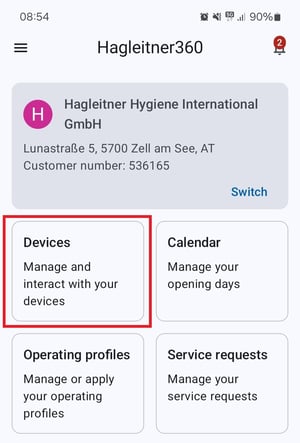
- Select a device or scan its QR code via the QR code button.
- Connect to the device.
- At "Settings" > "More" you can adjust the settings if needed.
- Scroll down to "Actions" > "More".
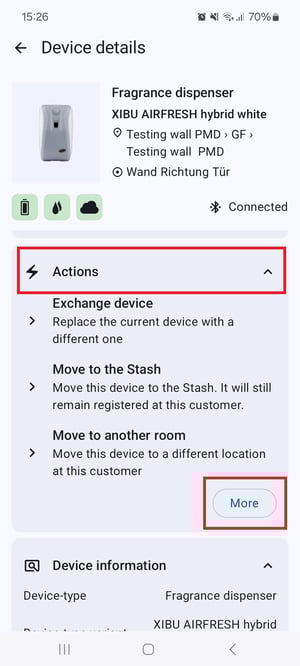
- Scroll down to "Create operating profile from settings".
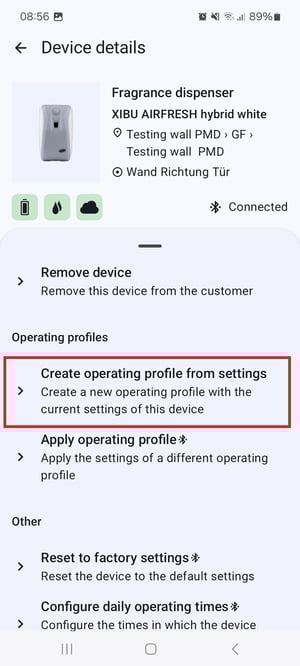
- Name the operating profile.
- Tap on "Save".
Applying an operating profile via actions at the device
- Open the Hagleitner360 app and open a customer number.
- Go to "Devices".
- Select a device or scan its QR code via the QR code button.
- Connect to the device.
- Scroll down to "Actions" > "More".
- Scroll down to "Apply operating profile".
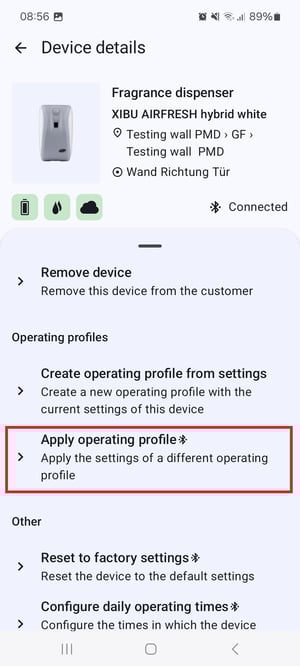
- Select an operating profile with the arrow icon .
- When the operating profile got applied, tap on "Close".