![Hagleitner_Logo.png]](https://knowledge.hagleitner.com/hs-fs/hubfs/Hagleitner/Hagleitner%20-%20Logo/Hagleitner_Logo.png?height=40&name=Hagleitner_Logo.png)
Information about stored device filters
When created in the HsM web portal, you can save device filters. These can be managed in the HsM web portal and applied in the Hagleitner360 app and HsM web portal.
Navigation for this guide:
- Saving a device filter
- Managing stored device filters
- Applying stored device filters in the HsM web portal
- Applying stored device filters in the Hagleitner360 app
Notice: If you want to know how to create a device filter in the Hagleitner360 app and HsM web portal, click here.
Saving a device filter
- Open the HsM web portal.
- Search and select a customer number.
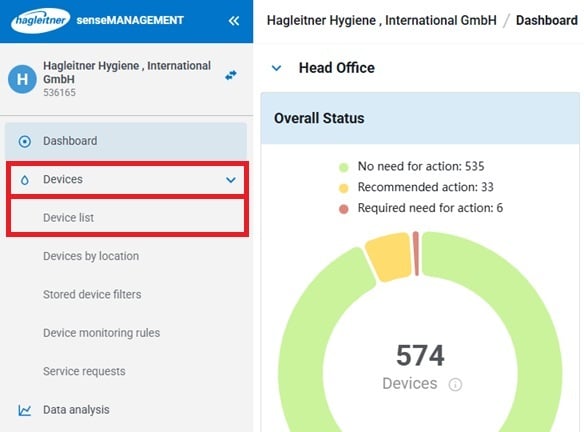
- Click on "Devices" > "Device list".
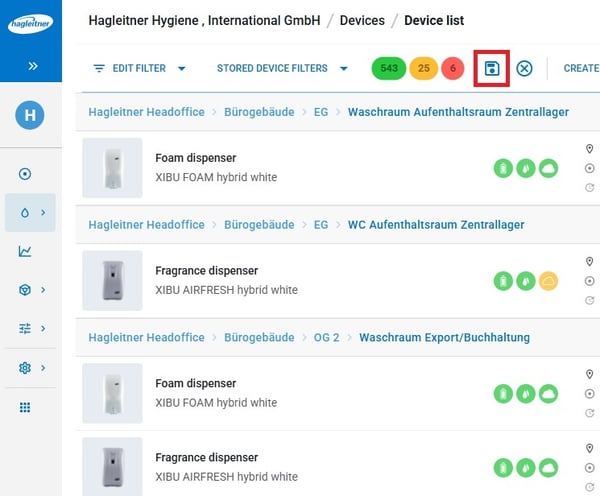
- Create a device filter.
- To save the device filter, click on the diskette icon
 .
. 
- Name the device filter.
- Optionally, you can give the device filter a description.
- Click on "Save".
Managing stored device filters
Navigation to the menu
- Open the HsM web portal.
- Search and select a customer number.
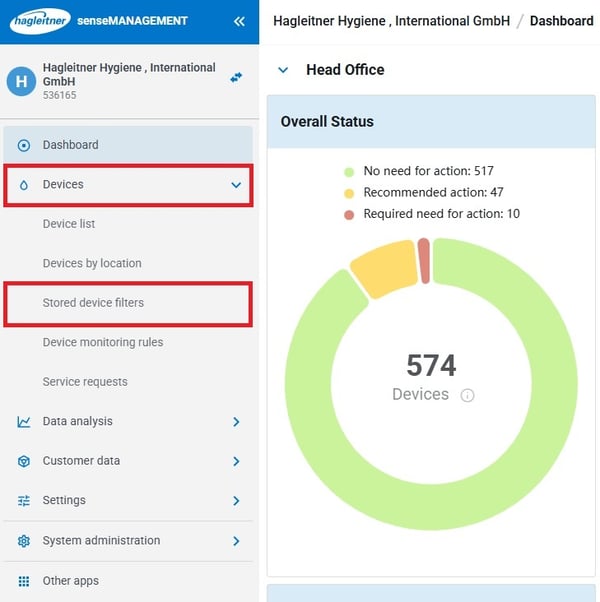
- Go to "Devices" > "Stored device filters".
Editing a filter's name
- Select the filter you want to edit.
- At "General properties" select the name or description field to edit these.
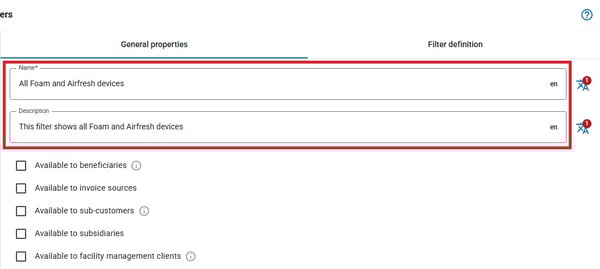
- To save the changes, click on "Save device filter" at the bottom right.
Adding a translation for a filter's name and description
- Select the filter you want to edit.
- At "General properties" select the translation icon
 at the name or description.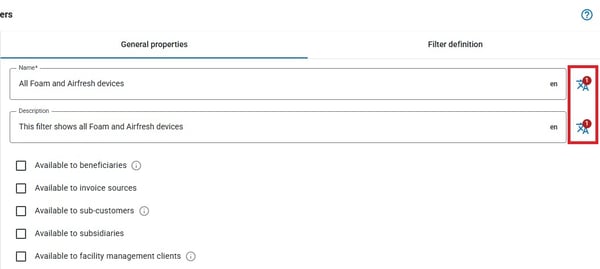
- Click on "Add translation"
- At "Language", select a language that is available for HsM.
- Enter in your Translation.
- Click on "OK" to confirm your translation.
- To save the changes, click on "Save device filter" at the bottom right.
Changing a stored filter's definition
- Select the filter you want to edit.
- At "Filter definition" you can edit the filter options.
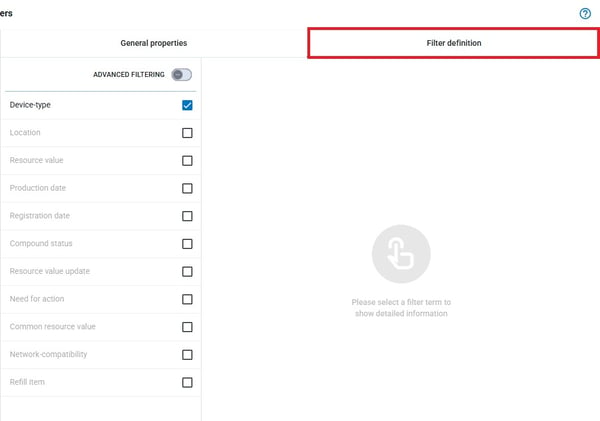
- To save the changes, click on "Save device filter" at the bottom right.
Making a filter available for other customer numbers
- Select the filter you want to edit.
- At "General properties" select one or more of the following options.
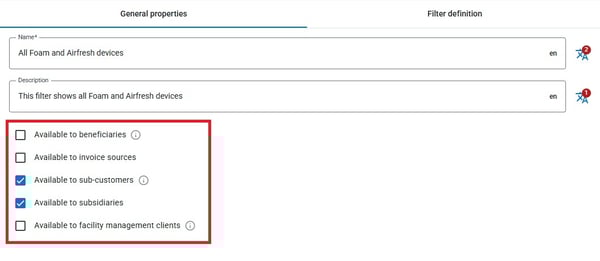
Notice: Filters are only available for customer numbers that have one or more of these relations to the customer number where the filters are located.
Copying a stored filter
- Select the filter you want to copy.
- Click on the three dot menu
 and select "Copy"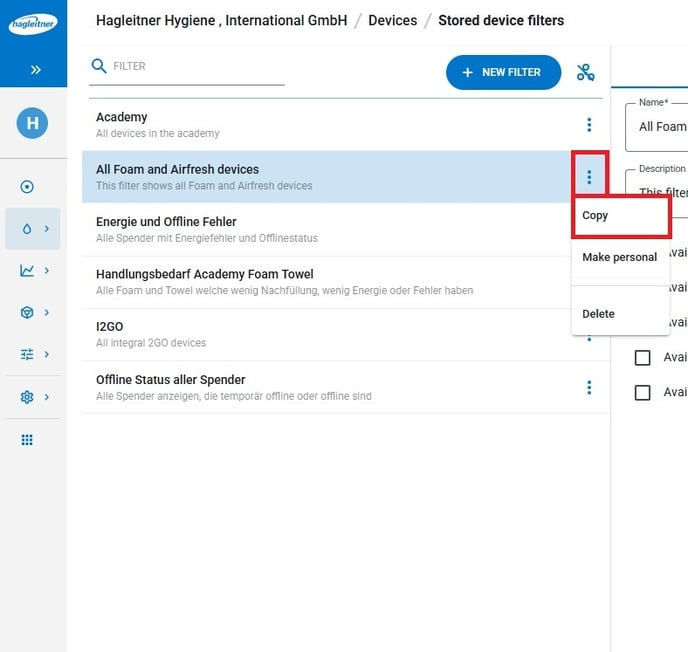
Notice: The copy will show up in the list with the same name as the original and with "(+)" at the end.
Making a stored filter personal/public
If a filter is personal, it can only be viewed, edited and applied by the user who created the filter.
- Select the filter you want to make personal or public.
- Click on the three dot menu and select "Make personal" or "Make public"
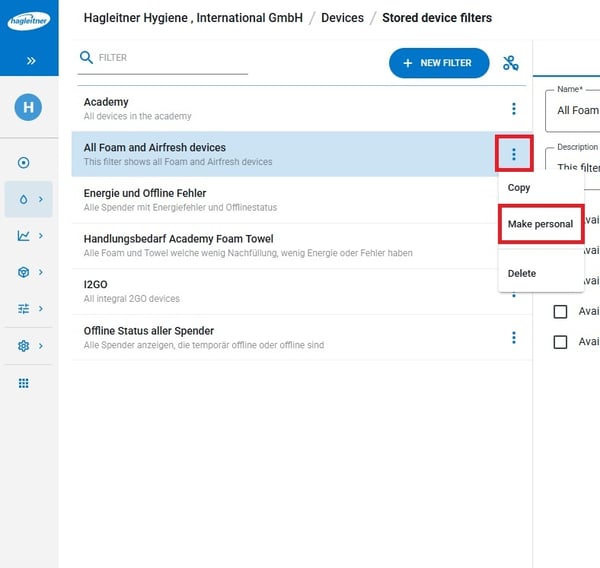
Tip: Personal filters are always marked with a person icon  .
.
Deleting a stored filter
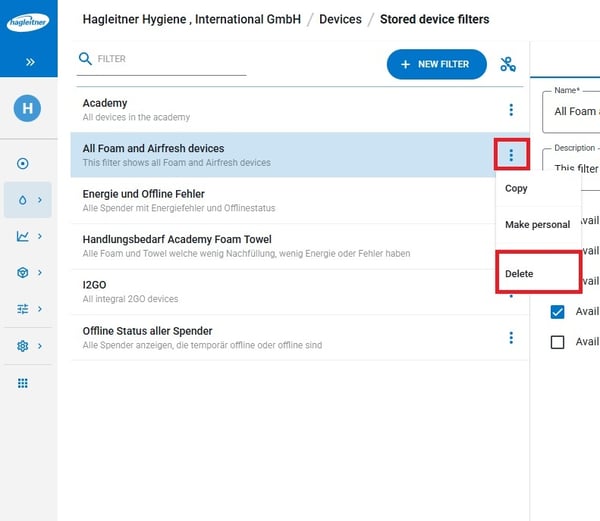
- Select the filter you want to delete.
- Click on the three dot menu and select "Delete".
Applying stored device filters in the HsM web portal
- Open the HsM web portal.
- Search and select a customer number.
- Click on "Devices" > "Device list".
- Click on "Stored device filters".
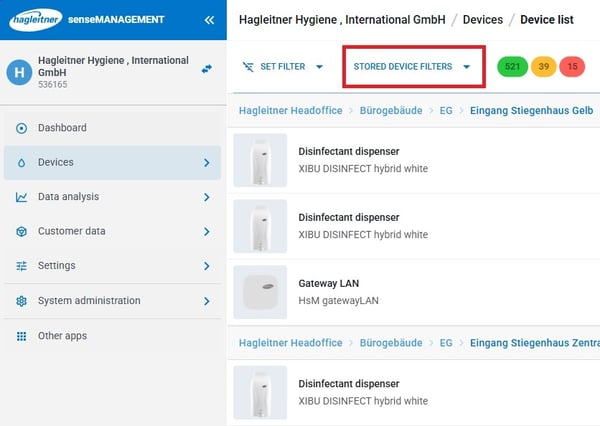
- Select the filter you want to use.
Applying stored device filters in the Hagleitner360 app
- Open the Hagleitner360 app.
- Search and select a customer number.
- Tap on "Devices".
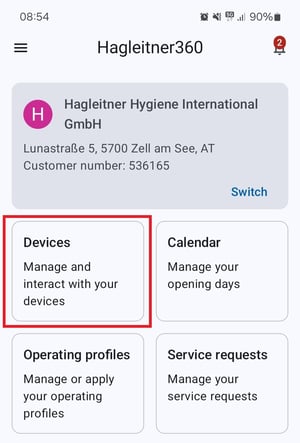
- Tap on "Load filter".
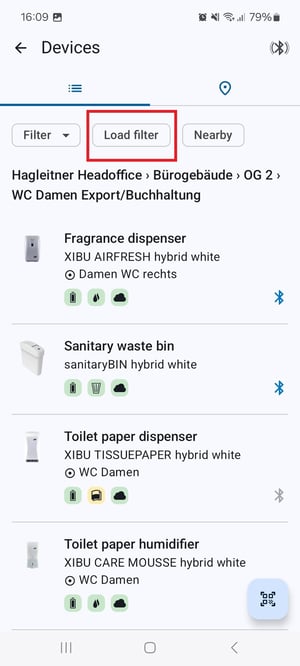
- Select the filter you want to use.