![Hagleitner_Logo.png]](https://knowledge.hagleitner.com/hs-fs/hubfs/Hagleitner/Hagleitner%20-%20Logo/Hagleitner_Logo.png?height=40&name=Hagleitner_Logo.png)
About the user administration
Via the user administration you can add users to a customer number in the HsM. You can also edit a user's role.
You can access the user administration via:
Inviting users via the HsM web portal
- Open the HsM web portal.
- Select your customer number via the search tab on the left.
- Click on "Settings" > "User administration".
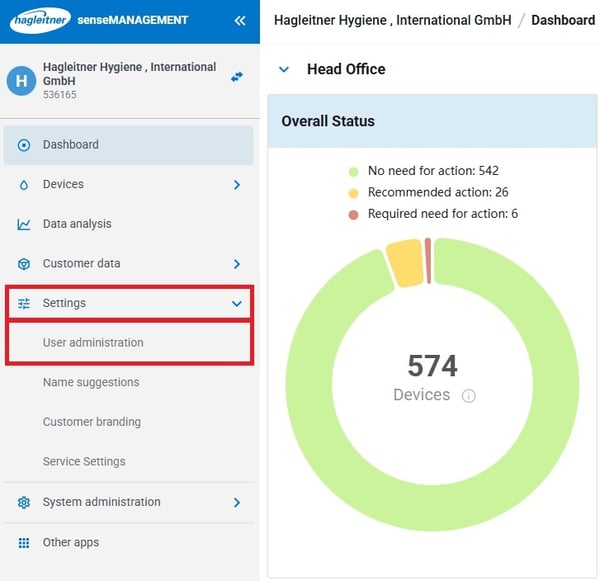
- Click on "Invite".
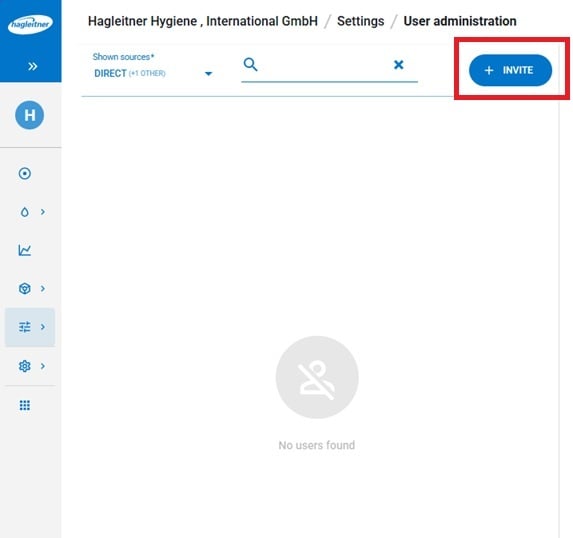
- Enter the user's email address.
- Select a role* for the user.
- If you want to send the user an invitation email, enable the check mark at "Send invitation email"
- Click on "Invite".
*Staff: Sees devices.
Facility Manager: Sees devices and can change device settings.
Administrator: Sees devices, can change device settings and administers users.
Editing a user's role via the HsM web portal
- Open the HsM web portal.
- Select your customer number via the search tab on the left.
- Click on "Settings" > "User administration".
- Select a user from the list.
- Click on "Assign roles".
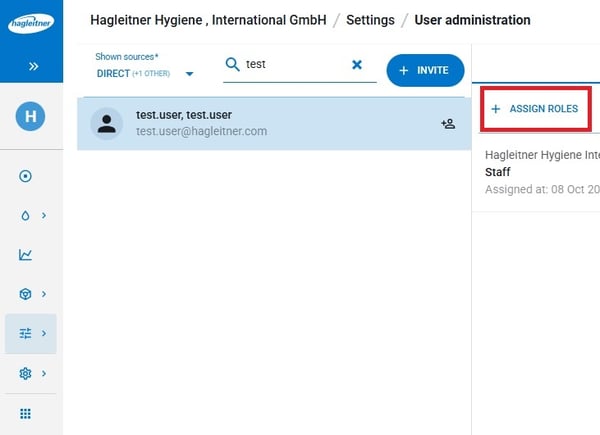
- Choose a role.
- Click on "Assign".
Removing a user's role via the HsM web portal
- Open the HsM web portal.
- Select your customer number via the search tab on the left.
- Click on "Settings" > "User administration".
- Select a user from the list.
- Click on the rubbish bin symbol
 or on "Delete all role assignments".
 - Confirm the action by clicking on "Delete".
Important note: Removing all role assignments from a user will remove the user's access to the customer number.
Inviting users via the Hagleitner360 app
- Tap on "Search" and search for a customer number and select it.
- Tap on "User administration".
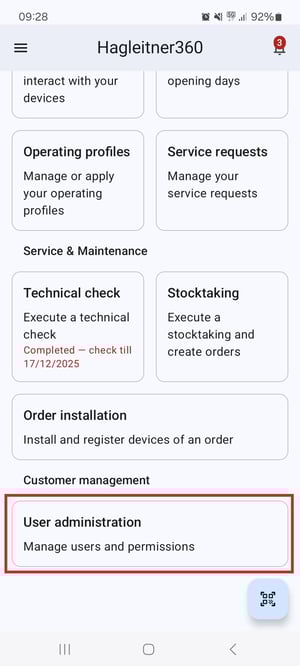
- Tap on "Invite user."
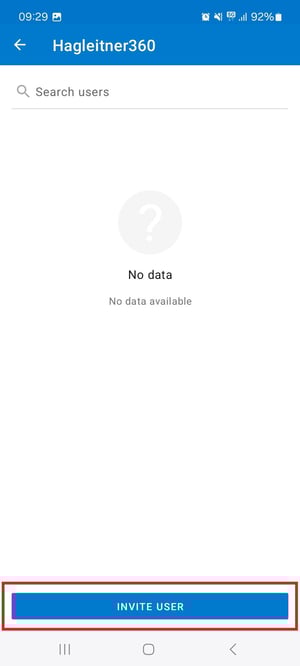
- Enter the user's email address.
- Select a role* from "Assignable roles" via the plus symbol
 .
. - Tap on "Invite user".
Editing a user's role via the Hagleitner360 app
- Tap on "Search" and search for a customer number and select it.
- Tap on "User administration".
- Select a user from the list.
- Select a role from "Assignable roles" via the plus symbol .
- Tap on "Save".
Removing a user's role via the Hagleitner360 app
- Tap on "Search" and search for a customer number and select it.
- Tap on "User administration".
- Select a user from the list.
- Remove a role from "Assigned roles" via the rubbish bin symbol
 .
. - Tap on "Save".
Important note: Removing all role assignments from a user will remove the user's access to the customer number.