![Hagleitner_Logo.png]](https://knowledge.hagleitner.com/hs-fs/hubfs/Hagleitner/Hagleitner%20-%20Logo/Hagleitner_Logo.png?height=40&name=Hagleitner_Logo.png)
Information about the gateway configuration
The gateway configuration is done via the Hagleitner360 app. Wi-Fi needs to be active on your smartphone in order to connect to the gateway's AP (Access Point) Wi-Fi.
Gateways can send HsM device data to the HsM cloud via:
Configuration for ethernet cable
- Open the Hagleitner360 app and select a customer number.
- Go to "Devices".
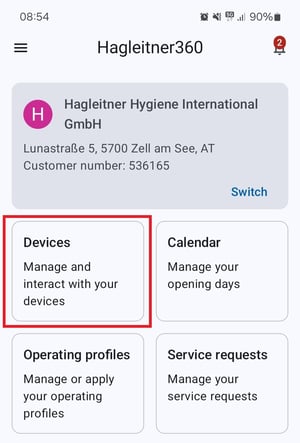
- Select a gatewayLAN or gatewaySIM or scan their QR code with the QR code button.
- Scroll down to "Actions" > "More".
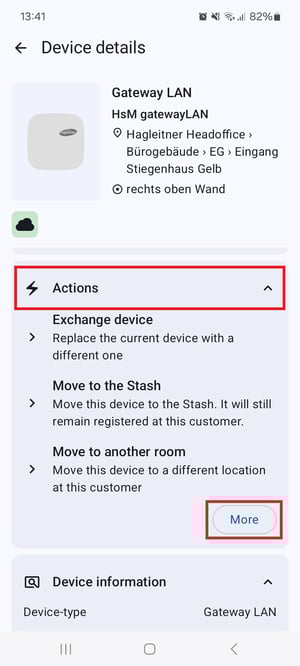
- Scroll down to "Configure Gateway network".
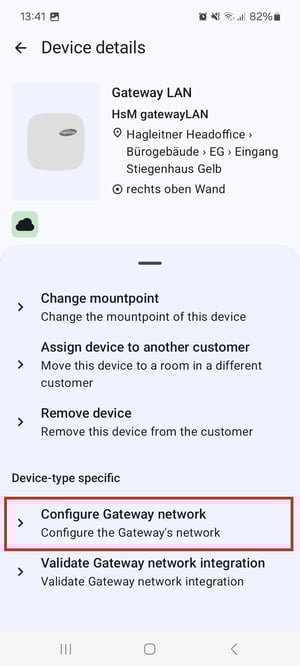
- Follow the app's instructions and tap on "Continue".
- Select "LAN".
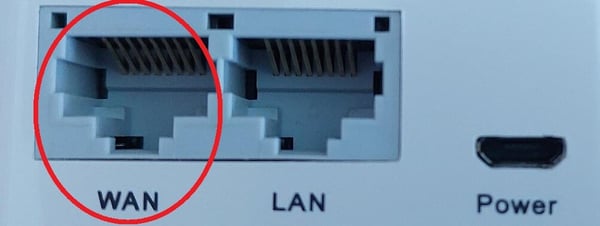
- Connect the ethernet cable into the WAN port of the gateway and tap on "Confirm" in the app.

- Choose a LAN configuration.
- Automatic (DHCP) can be used when the network uses a DHCP server, that automatically assigns network settings (like IP address, etc.).
- Manual can be used when the network settings need to be written onto the gateway manually. When the necessary network settings have been entered tap on "Confirm".
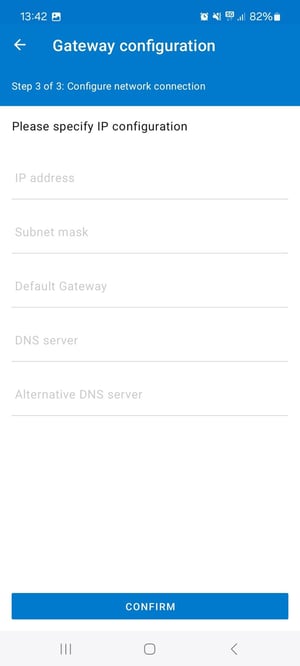
- After a successful configuration, tap on "Finalize".
Tip: Contact the network's administrator for the ethernet cable configuration.
Configuration for Wi-Fi
- Open the Hagleitner360 app and select a customer number.
- Go to "Devices".
- Select a gatewayLAN or gatewaySIM or scan their QR code with the QR code button.
- Scroll down to "Actions" > "More".
- Scroll down to "Configure Gateway network".
- Follow the app's instructions and tap on "Continue".
- Select "Wi-Fi".
- Select one of the Wi-Fi networks in the list.
- If the Wi-Fi network is hidden tap on "Add Wi-Fi network".
- Enter the Wi-Fi network name (SSID), if needed.
- Enter the Wi-Fi network password, if needed.
- Repeat the password to confirm it.
- Tap on "Connect".
- After a successful configuration, tap on "Finalize".
Configuration for SIM card
- Open the Hagleitner360 app and select a customer number.
- Go to "Devices".
- Select a gatewaySIM device or scan its QR code with the QR code button.
- Scroll down to "Actions" > "More".
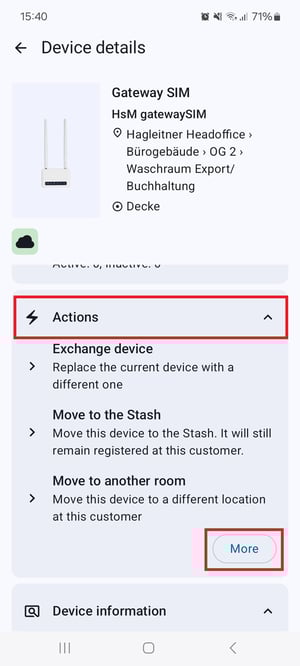
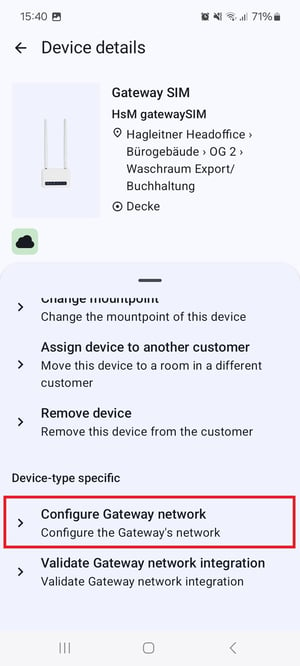
- Scroll down to "Configure Gateway network".
- Open the lid on the back side of the gatewaySIM (above the QR code sticker) and put in the SIM card.
- Connect the power cable to the gatewaySIM and wait until the device is booted up (approx. 1-2min).
- Tap on "Continue" in the app.
- Select "SIM".
- Enter the SIM network settings (settings that are not needed can be left empty).
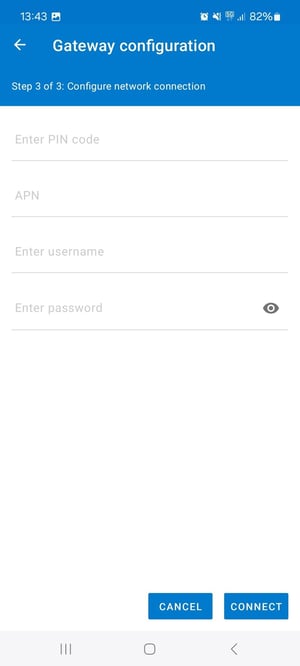
- Tap on "Connect".
- After a successful configuration, tap on "Finalize".
Tip: Check with your SIM card provider, if the card needs to be activated before usage.
Validate connection
To make sure that the gatewayLAN or SIM is connected to the internet after the configuration, you can validate the connection. Wi-Fi needs to be active on your smartphone in order to connect to the gateway's AP (Access Point) Wi-Fi.
Notice: If you are using an iPhone for the gateway configuration, the validation is done automatically during the configuration. When using Android devices, the validation needs to be done manually.
- Open the Hagleitner360 app and select a customer number.
- Go to "Devices".
- Select a gatewayLAN or gatewaySIM that has been configured or scan their QR code with the QR code button.
- Scroll down to "Actions" > "More".
- Scroll down to "Validate Gateway network integration".
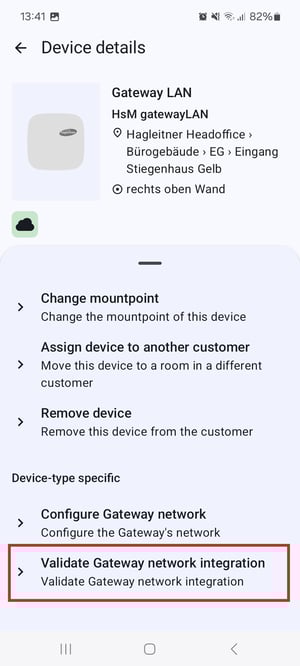
- After a successful validation, tap on "Finalize".
The gateway is correctly configured, but has no internet connection? Click here.